Shell Script - Basic [Part - 1]
First Script:
To find the path of bash on the Linux Terminal
which bashRun the below cmd to run/execute your shell script
bash yourshellscript.sh
Or
./yourshellscript.sh
Or
sh yourshellscript.shMake sure the script has executable permissions and
chmod 777 <script_name.sh> Or chmod 755 <script_name.sh>When you want to Run the script as Command, make sure your script path is defined in the $PATH variable so the shell searches your script/cmd and executes it.
echo $PATH $ export PATH=$PATH:/home/<Userdirectory>Variables:
Variable names must be in lower-case with underscores to separate words”
Variables are case-sensitive.
Only ALPHANUMERIC OR UNDERSCORES should be used for variables when using - (hyphen) will cause errors for the Variables
i.e (Bad Variable: product-name)
Variables are represented via $ (Dollar sign)
i.e
System variable:
echo $BASH
Manually define variable
name="Devops Team"Call the variables in the script
name="Devops Team" echo "hello ${name}"To comment or to skip from execution you can use #(hash) at the start of the cmd
User Input and arguments using "read"
Option: 1
echo "Please enter your age: "
read age
echo "My age is ${age}"Option: 2
read -p "Please enter your age:" age
echo "Your age is $age"
Halting using sleep
sleep 2Take arguments from the user when running the script using $1 (First argument)
Run the shell script using
bashyour-shell-script.sh<argument>The file
echo "Sub: Hello, I am $1"
If else statement
if [ "$1" = "like" ]
then
echo "Hello, Please $1 this video"
else
echo "Okay, then please Subscribe:)"
fiShell Script that prints
I will complete #90DaysOofDevOps challenge
- Shell Script with coloring effects
I will complete #90DaysOofDevOps challenge
- Shell Script with coloring effects
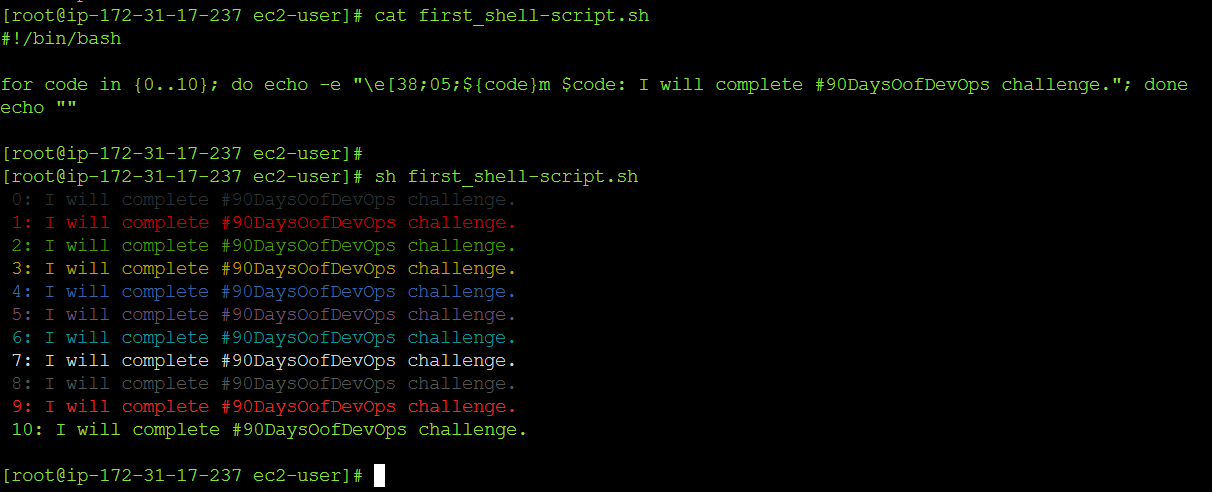
Code:-for code in {0..255}; do echo -e "\e[38;05;${code}m $code: Colour"; done
Reference Url:-https://stackoverflow.com/questions/5947742/how-to-change-the-output-color-of-echo-in-linuxhttps://devopscube.com/linux-shell-scripting-for-devops/https://www.geeksforgeeks.org/bash-script-read-user-input/
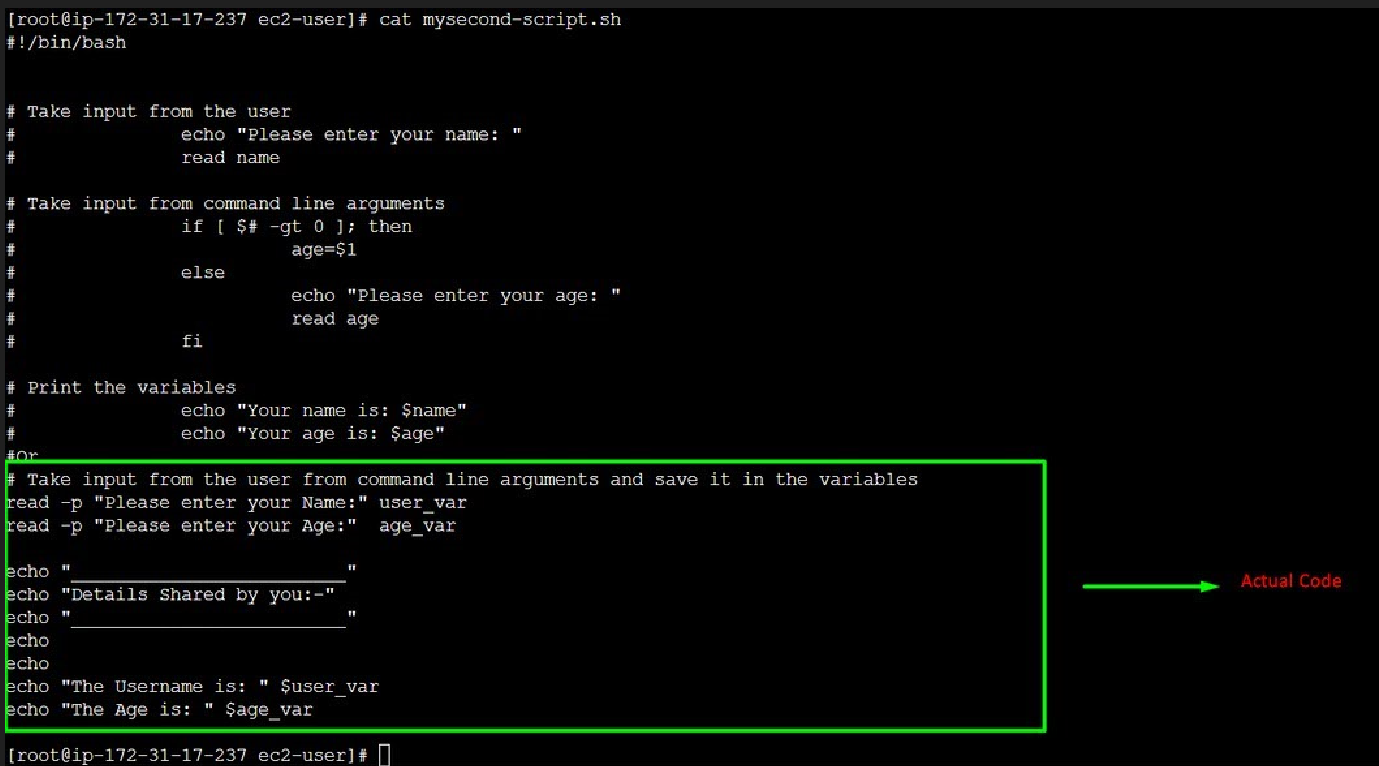
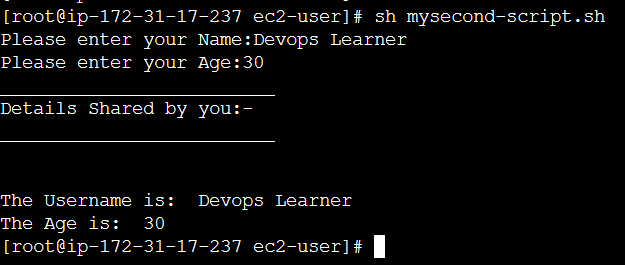
- Write a Shell Script to take user input, input from arguments, and print the variables.
Code:-
Script Output:-
SHELL is a program which provides the interface between the user and an operating system. When the user logs in OS starts a shell for user. Kernel controls all essential computer operations, and provides the restriction to hardware access, coordinates all executing utilities, and manages Resources between process. Using kernel only user can access utilities provided by operating system.
Popular Types of Shell:
Bourne Shell (sh)
C Shell (csh)
KornShell (ksh)
Bourne Again Shell (bash)
Z Shell (zsh)
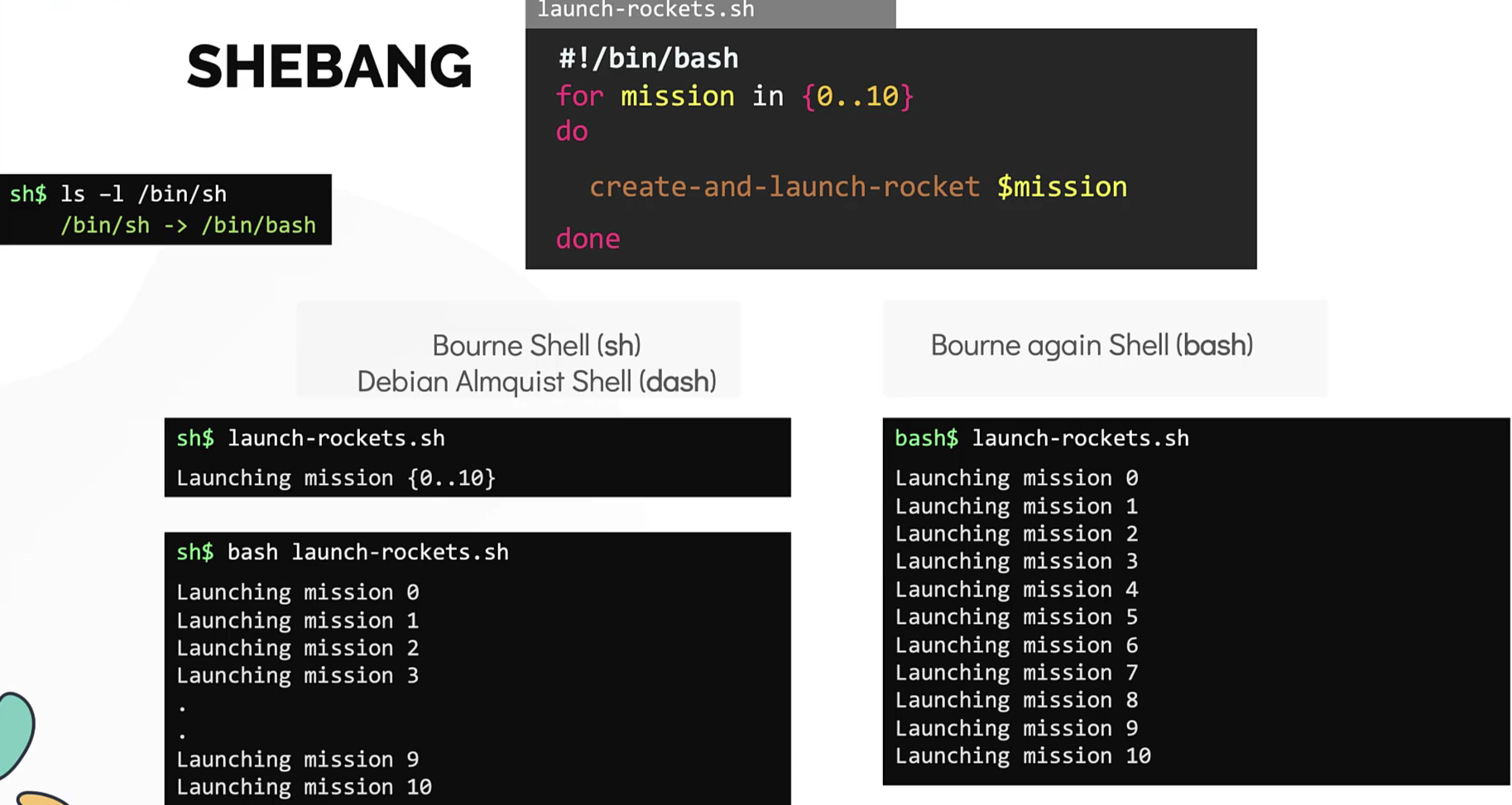
This
#!is called shebang or hashbang. The shebang plays an important role in shell scripting, specially while dealing with different types of shell.The shebang is the combination of the # (pound key) and ! (exclamation mark). This character combination has a special meaning when it is used in the very first line of the script. It is used to specify the interpreter with which the given script will be run by default.
So, if the first line of a script is:
#!/bin/bashIt means the interpreter should be bash shell.