Git - Basic
Git is a software tool based on distributed version control system, that is installed in an individual machine to maintain the local repositories as well as push/pull changes from/to the central repositories.
It is a distributed, open-source version control system.
It enables developers and data scientists to track code, merge changes and revert to older versions. It allows you to sync changes with a remote server. Due to its flexibility and popularity, Git has become an industry standard as it supports almost all development environments, command-line tools, and operating systems.
Git Configuration Levels:
1. --systemgit config --system --listConfig File:- cat /etc/gitconfig
2. --globalgit config --global --listConfig File:- cat ~/.gitconfig
3. --localgit config --local --listConfig File:- cat .git/config
Note: Local overrides Global and Global overrides System Level.
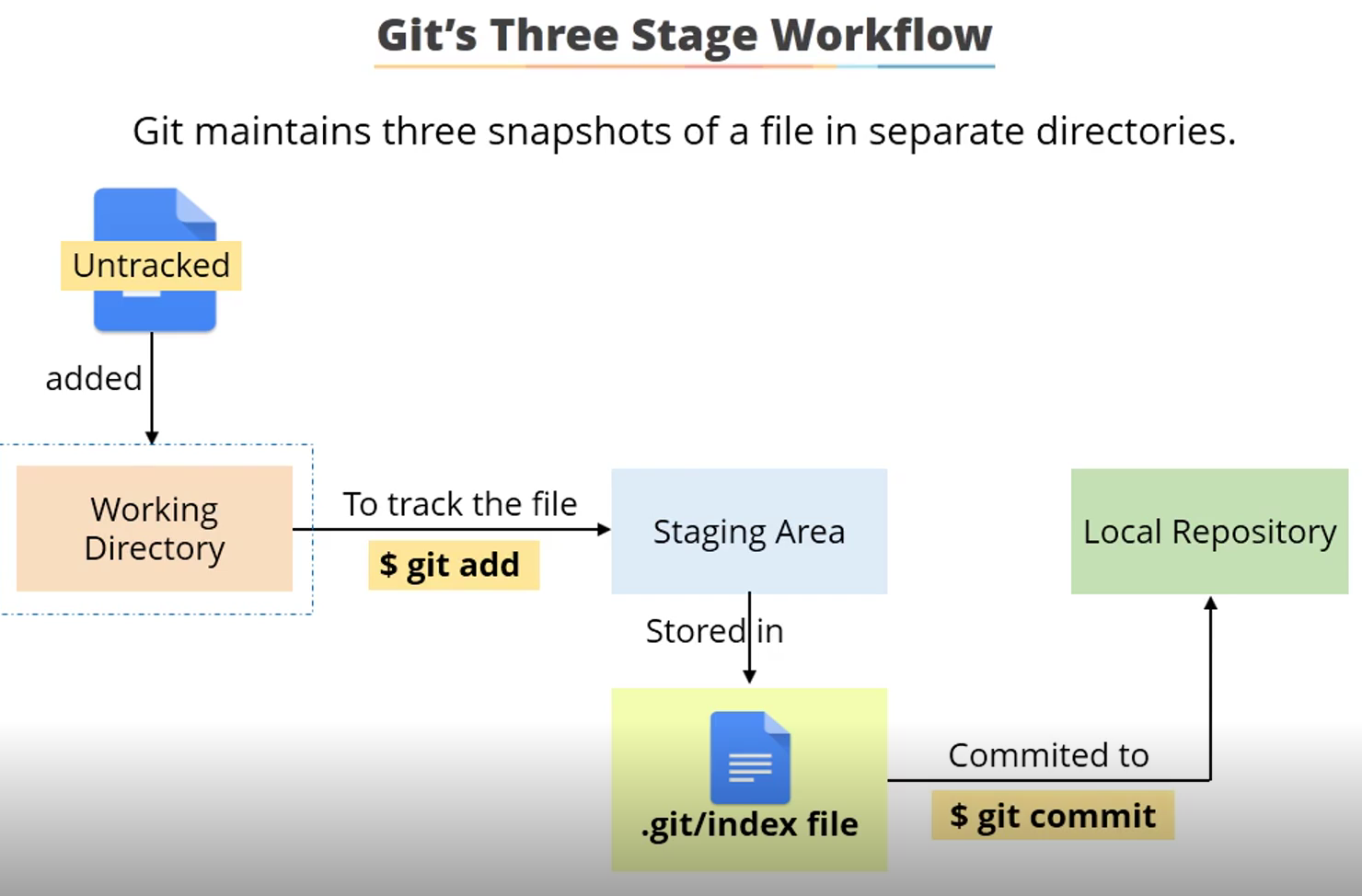
Three stages of Git-:
i) Working directory/Workspace: The folder where you work/save all the work files. Inside this folder, you'll have to initialize the local repo:git init
After initializing, add files to the staging area by:git add <Filename>
ii) Staging area: It acts like a caching zone or temporary storage of files before pushing them to a local repo. To send changes to the local repo:git commit -m "your message here"
iii) Local Repository: It maintains the versions. git push and git pull commands can then be used to push/pull code from a central repository like GitHub, GitLab, or Bitbucket...
Helpful URLs:
Install on Windows: https://git-scm.com/download/winGit CheatSheet:- https://gist.github.com/LondheShubham153/0b367734a02e8cf77e6ea1dc90ee0f38
https://education.github.com/git-cheat-sheet-education.pdf https://www.atlassian.com/git/tutorials/atlassian-git-cheatsheet
Working with Git:-
Connect to EC2 Instance [Verify if Git is installed, if not install it]
sudo -s pwd yum list git //List Available Packages
git --version // Check the Git Version
yum install git -y // If the above cmd, has not shown the version, install it...You can also install Git Bash on your Operating system, you can download the App from here: https://git-scm.com/downloads

Create a Directory and file where you want to work/save all the work files.
mkdir devops-git-first && cd devops-git-first && echo "First GitHub File..." > github.txt && pwd && ls -lhaInitialize the local repo [Inside this folder, we create eariler]
This will create a hidden directory that stores all metadata required for it to function.
git initConfigure the username and user email to identify who made the changes:
git config --globaluser.name"<Username>"
git config --globaluser.email"<your_email_here>"Note:
user.nameanduser.emailsettings need to be configured for all Commits. So it means, you can't commit, until you have configured your Username and Email.User settings in GIT are mainly defined at Global Level because they correspond to user-level settings for all repositories.To list created users:
git config --listCheck git status:
git statusTake your file from untrack to the staging area
(For single file)
git add <File-name>(All files)
git add .Check git status to verify the changes:
git status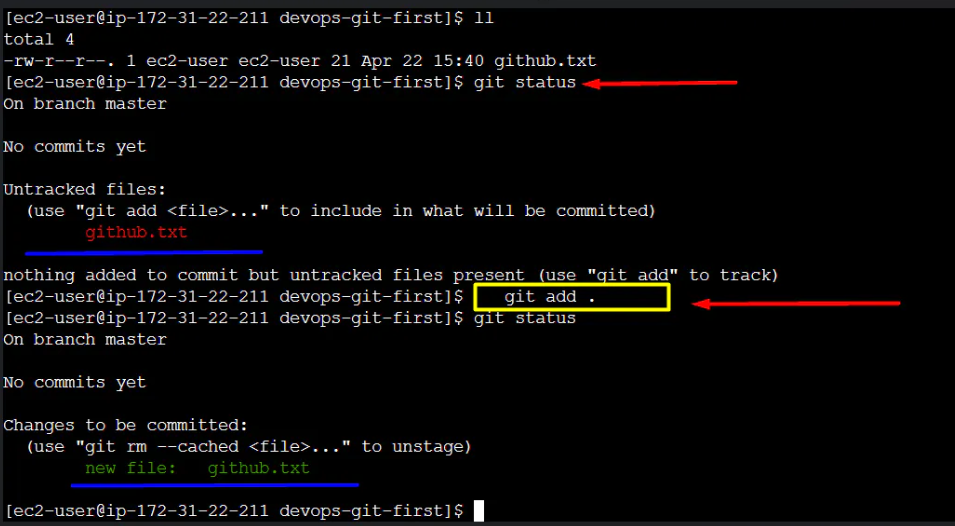
Commit file to the local repo:
git commit -m "Your message here"Check the git log:
Detail log
git logSummary logs
git log --onelineTo show what's in the specific commit:
git show <commit_id>
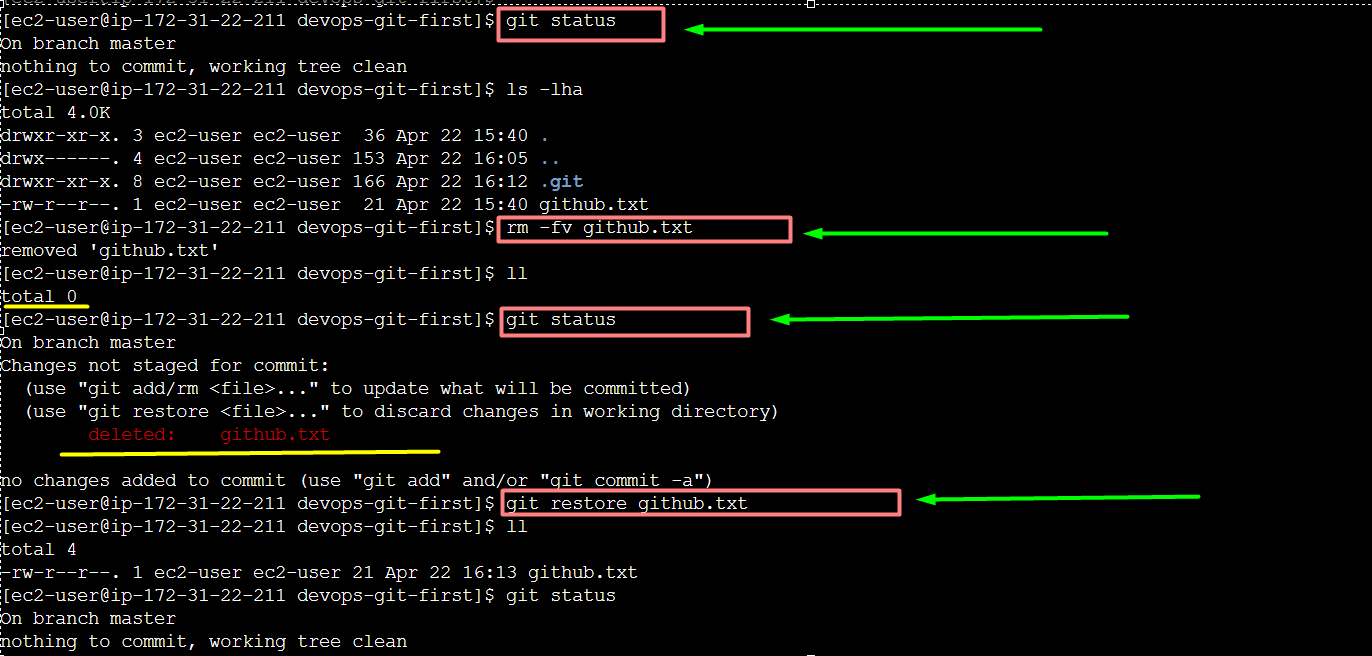
Restore the file, once it gets deleted from the File System:
ls -lha; rm -fv <Filename>git statusgit restore <Filename> // Restore the file from Repogit statusgit log
Example:
Let's create Repo, Add a file to it, and Commit:mkdir gitdirectorygit init gitdirectory ; cd gitdirectory; touch file1.txt ;git status ; git add file1.txt ; git commit -m "First Blank File"git status; git log --oneline
Git Branches: Branches are used for parallel development. There is no restriction on the number of branches that can be created. It is recommended that each task is done in a separate branch and then merged after the successful completion of the task. Any new file is visible to all the branches unless committed to a specific branch.
Branching is a separate workspace, usually created when you want to experiment or test something without impacting the main code base, it is also used for
- Manage Releases
- Create Hotfixes for production branches.
In short, A branch is a method of requesting a new working directory and staging area.
Note: A Git branch is just a pointer to the commits, it does not change the contents of the repository.
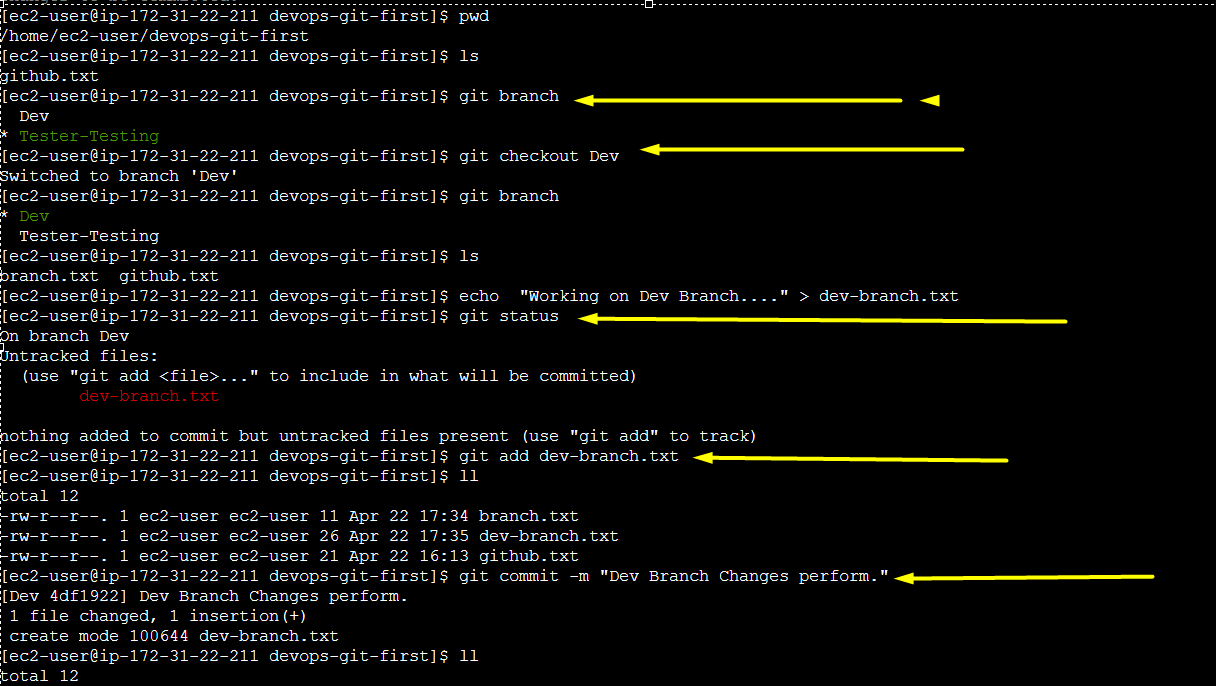
To see all the branches in the system:
git branchTo create a new branch:
git branch <branch name>To switch to another branch:
git checkout <branch name>Merges Branches
git merge <branch name>Create and checkout/switch to a new branch named.
Drop the -b flag to checkout an existing branch
git checkout -b <branch name>
See example, when we switch to another branch, the files created on the previous branch will not be available.

Notes:
- Master/main is the default branch, which is created by default when a repository is initiated using git init cmd.
- * :- Represend as Active Branch
- When a new branch is created, the complete commit history of the master branch is replicated.
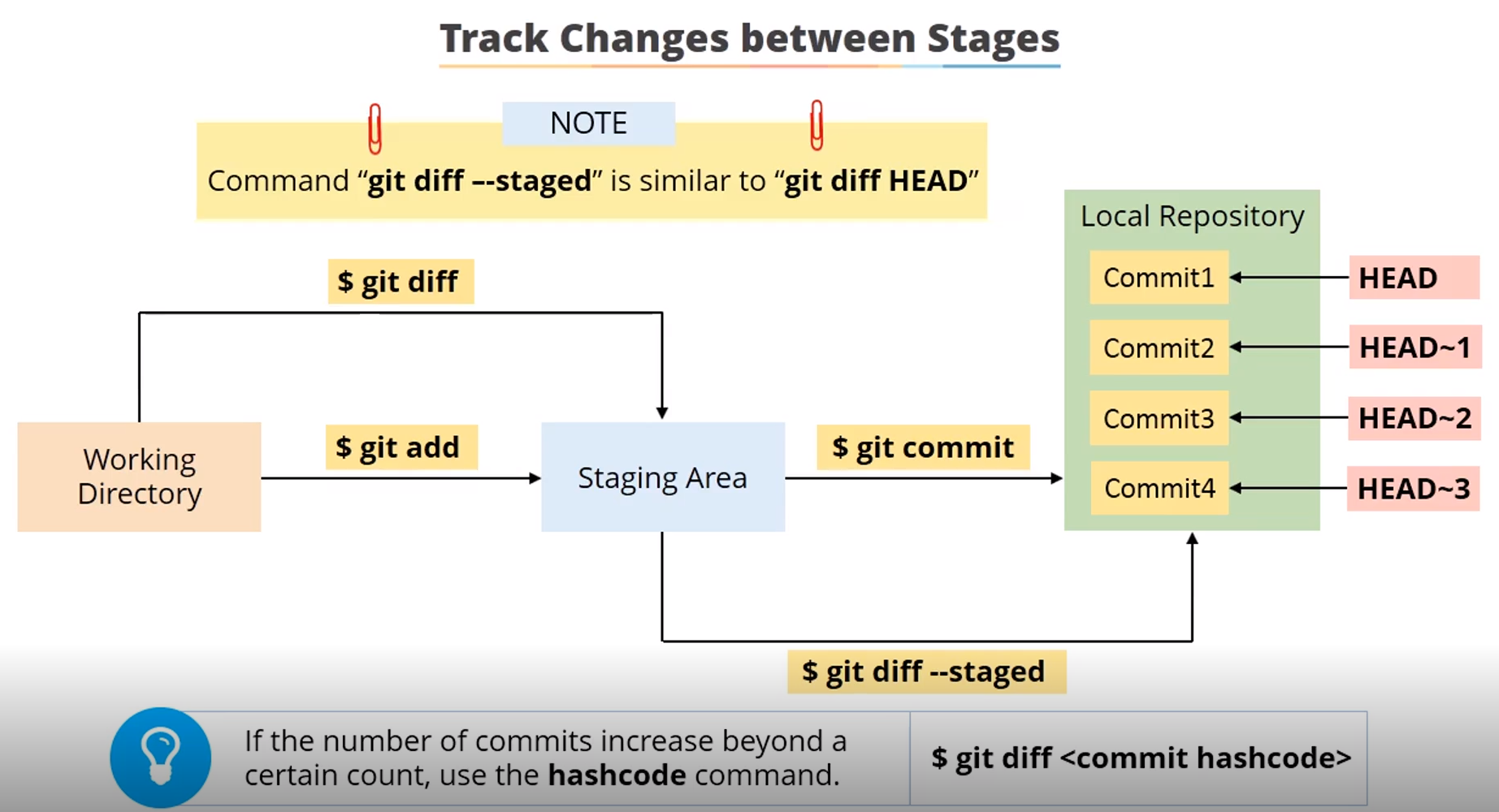
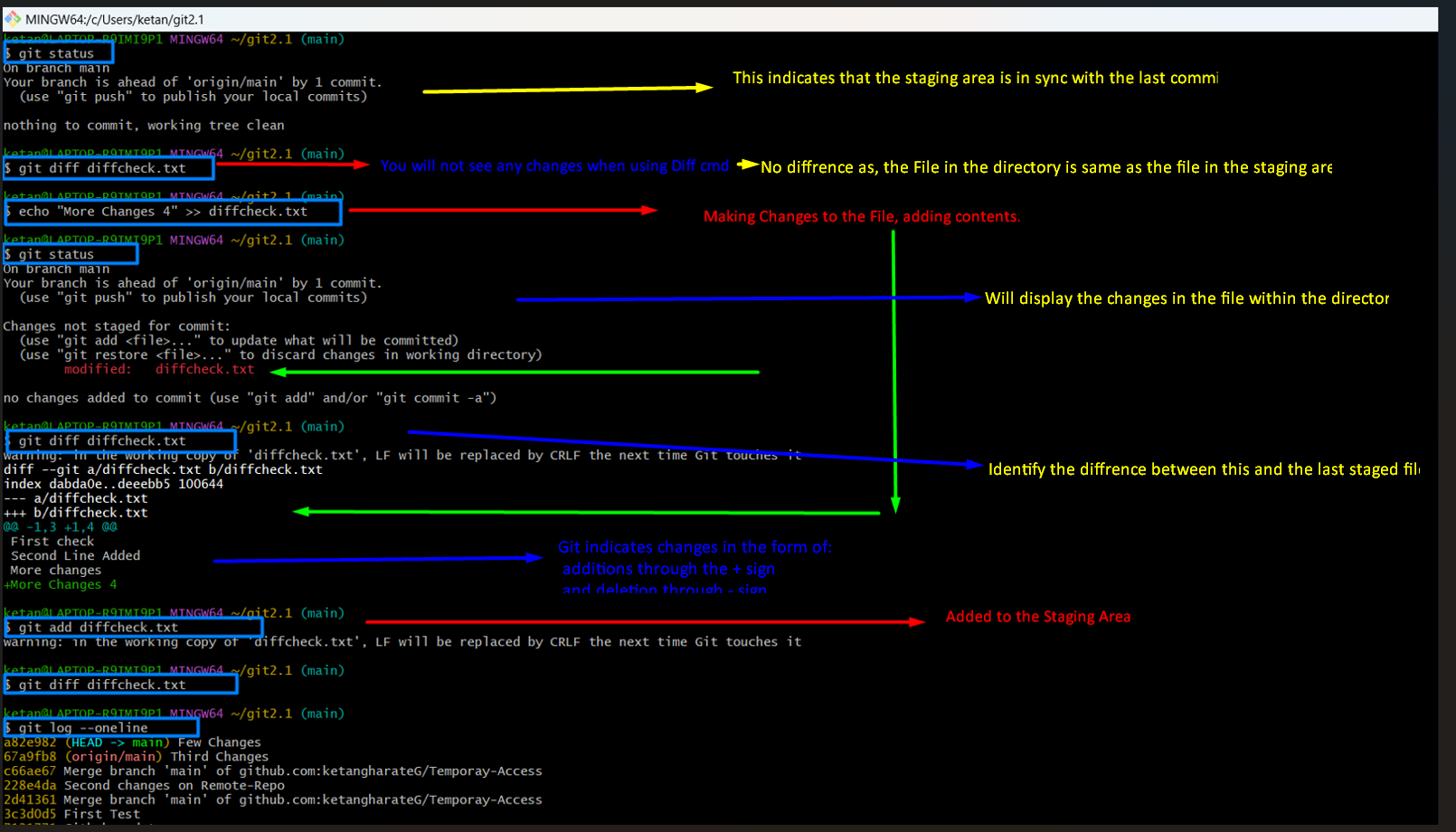
git diff --staged HEAD // This indicates the changes in the last commitgit diff --staged HEAD~ // To refer to the second last commitgit diff <Commit-ID>
- Revert to Earlier Commits in GIT
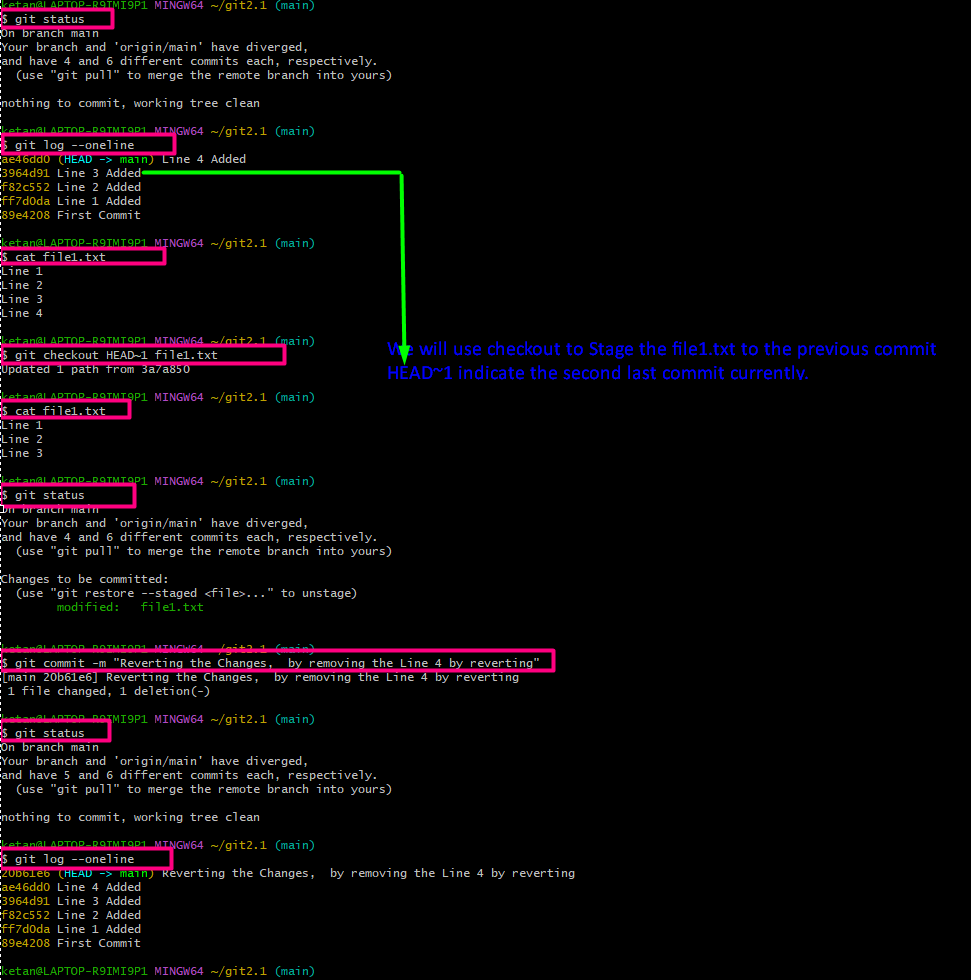
Demo 1:git log --oneline$ cat file1.txtLine 1Line 2Line 3Line 4
Use the below cmd to Revert to the Earlier Stage$ git checkout HEAD~1 file1.txtOrgit checkout <Commit ID> <File-Name>HEAD~1 :- indiadates the recent Commit 2
Check the file which now shows you the previous version's contentscat file1.txt
The status will show the file needs to be committedgit statusgit commit -m "Reverting the Changes, by removing the Line 4 by reverting"git statusgit log --oneline
Deleting Files from Staging Area and Working Directory
git rm <File-name>Deleting only from the Staging Area
git rm --cached <File-Name>Check how many files are staged
git ls-files --stagedNote: - Even if the file is deleted, its commit history is still present in the repository. If you want you can revert the deletion it can be done using:
git checkout <Commit ID/Version> <File-Name>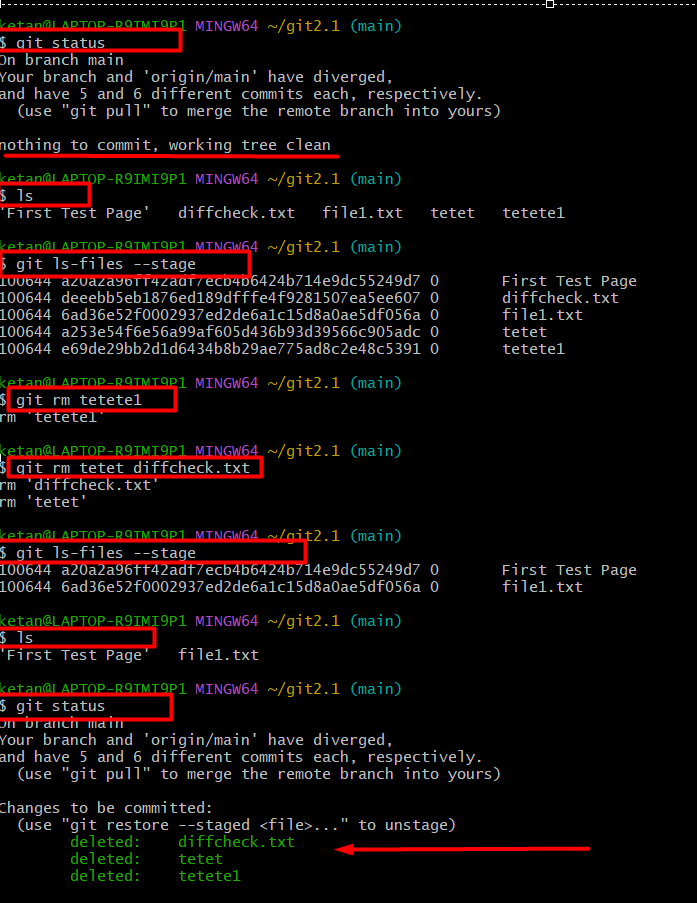
Ignore Files in Git using
.gitignorefile, It:-
// Stores File Name
// Stores File Pattern-f flag can be used to ignore the.
gitignorefile
i.e:-git add -f <file name>cat .gitignore
*.txt
touch {1..10}.txt
ls
git status
git add .
git commit -m "Trying to commit"
- Rename file in Git
git mv <File name> <New file name>
git add <File name>
git commit -m "Message"
git status
git log --oneline
- Rename file in Git