Git - Additional
Merging Branches - Pre Requisites
Analyze the differences
git diff
git diff master..<Branchname>Prevent Conflicts
Steps to Merge Branches:
Switch to the branch you want to merge
Execute
git merge <Branch Name>Note: You can also use Git GUI to see git diff output if you are using Git Bash APP in Windows.
Demo:
git status; ls -lhtr
git branch
git checkout <branch name>
git log --oneline --decorate --graph
git checkout - // switch to the previous Branch
git diff master..<Branch Name>git merge <BranceName>
git diff master..<Branch Name>
git log --oneline --decorate --graph
Stashing Across Branches
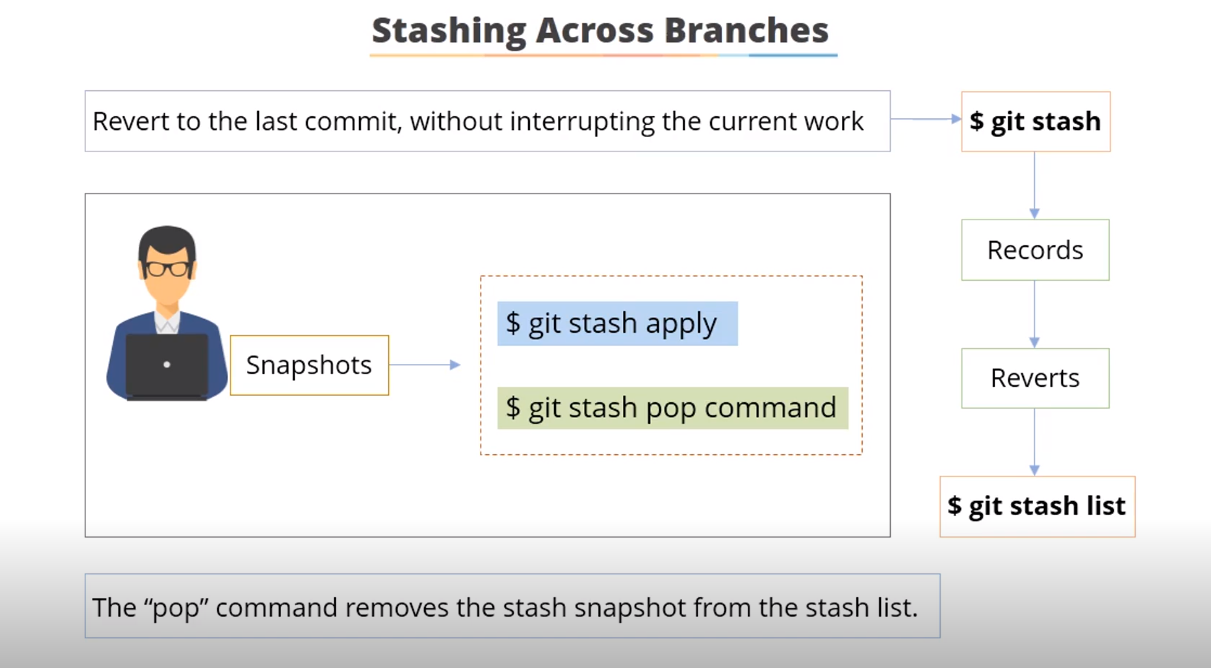
While working on your current branch, if you want to switch to another branch for some work, without committing your changes and interrupting your current work, you can use stash.
At this point, you will be prevented from switching the branch, and you have 2 options:
Commit
Stash
It records the current status of the working directory and staging area and reverts to a clean working directory.
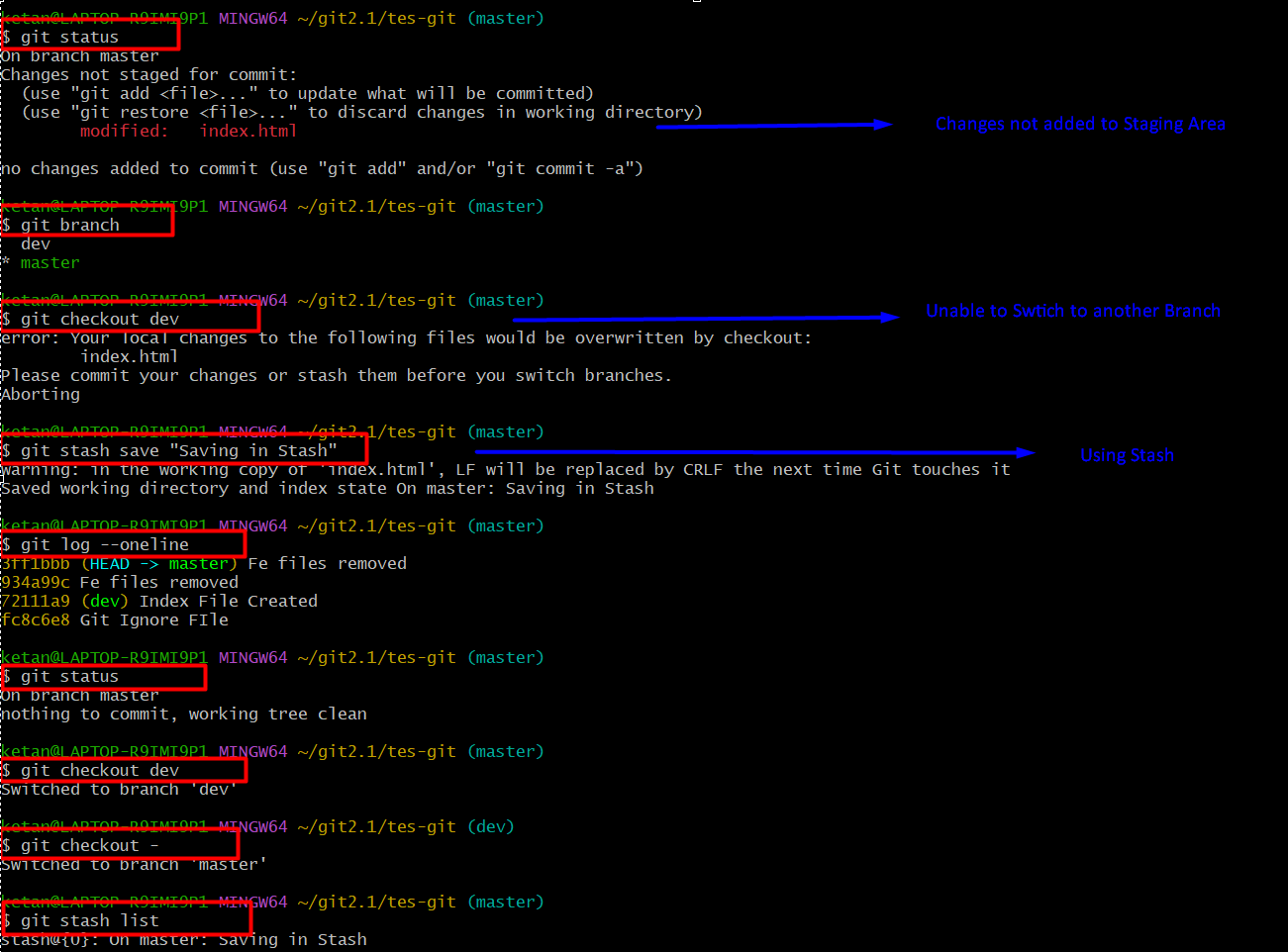
Adding contents to the file git status git
echo "Work Under Progress" >> index.htmlYou will get an error while Switching to another branch
git checkout <Another Branch Name>Creating Stash Snapshot
git stash save "Your Stash Message"git log --onelinegit statusSwitching to another branch
git checkout <Another Branch Name>git log --oneline git statusSwitching to the previous branch
git checkout -To list down the stashes
git stash listWill display the number of files involved in the stash and lines updated.
git stash showIf you want to continue with your previous work
git stash applyClear the Stash Snapshots git stash list
git stash clear
What DevOps Mostly work on
Revert / Reset
Approve, Merge, and Rebase
Cherry Pick
Revert
git revert creates a new commit that reverses the changes made in a previous commit. This new commit is applied on top of the existing commit history, which means that the previous commit still exists, but its changes are undone by the new commit. This is achieved by creating a new commit with the opposite changes of the original commit. For example, if the original commit added a line of code, the revert commit would remove that line of code.
git revert is like using an eraser to undo a mistake you made in your notebook. You don't erase the whole page, but just the mistake, and write the correct thing next to it. This way, you still have a record of what you wrote and when you wrote it.
Cmd:
git revert <commit-id>
<commit-id> can be obtained from the output of
git log --oneline
Reset
git reset moves the branch pointer to a previous commit and discards all the commits that came after it. This means that the branch is rewound to the specified commit, and the commit history after that point is deleted.
There are different modes, including "soft", "mixed", and "hard", which determine how much of the changes are retained after the reset.
For example, a "soft" reset will keep the changes made in the deleted commits, but they will not be part of the commit history anymore.
git reset, is like using a time machine to go back in time and erase everything you did after a certain point. You can't see the erased part anymore, and it's like it never happened. This can be useful if you want to start over from a clean slate, but you have to be careful not to erase something important by mistake.
Cmd:
git reset <commit-id> --soft
<commit-id> can be obtained from the output of
git log --oneline
Note: git reset will clear the commit history, but changes within the file may need to be removed manually, depending on the switches you use (soft, hard).
HEAD:- Where the branch is at the latest stage is known as HEAD.
It shows where your latest changes are Or where your Repository is pointing.
You can say, HEAD is the latest commit.
Merge
[Demo]
You can use a clone a repo Or you can create a new repo using
git initcmd and add files to the repo.
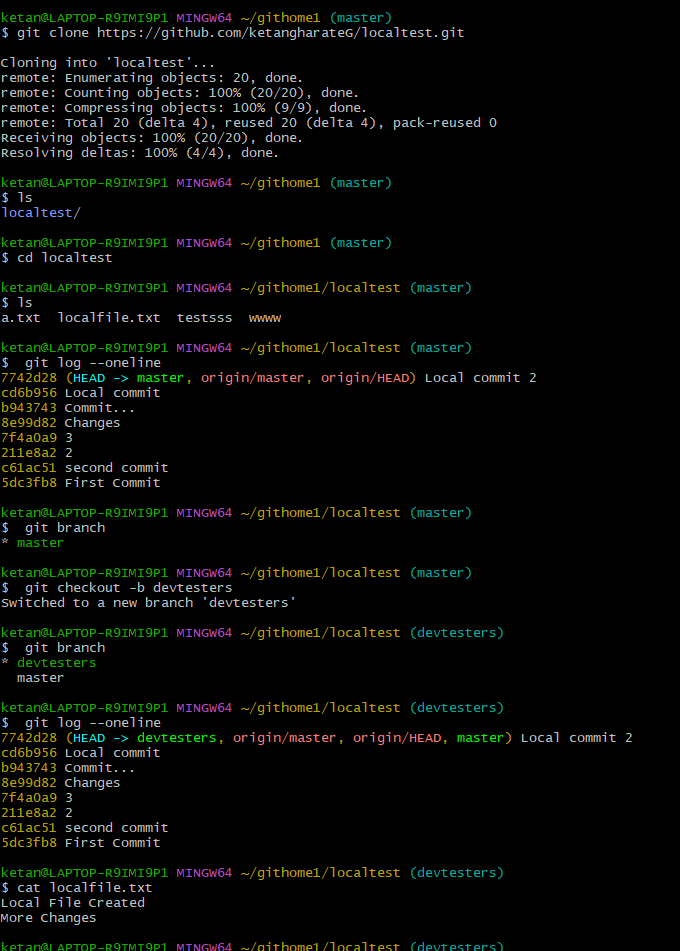
git clonehttps://github.com/ketangharateG/localtest.gitSwitch to the directory and list the contents
cd localtest ; lsTo check for committing history
git log --onelineTo list the branches
git branchSwitched to a new branch 'devtesters'
git checkout -b devtestersYou will see * in front of the changed branch
git branchYou will see that head is pointing to HEAD -> devtesters and master
git log --onelineAdd/Modify changes in the file
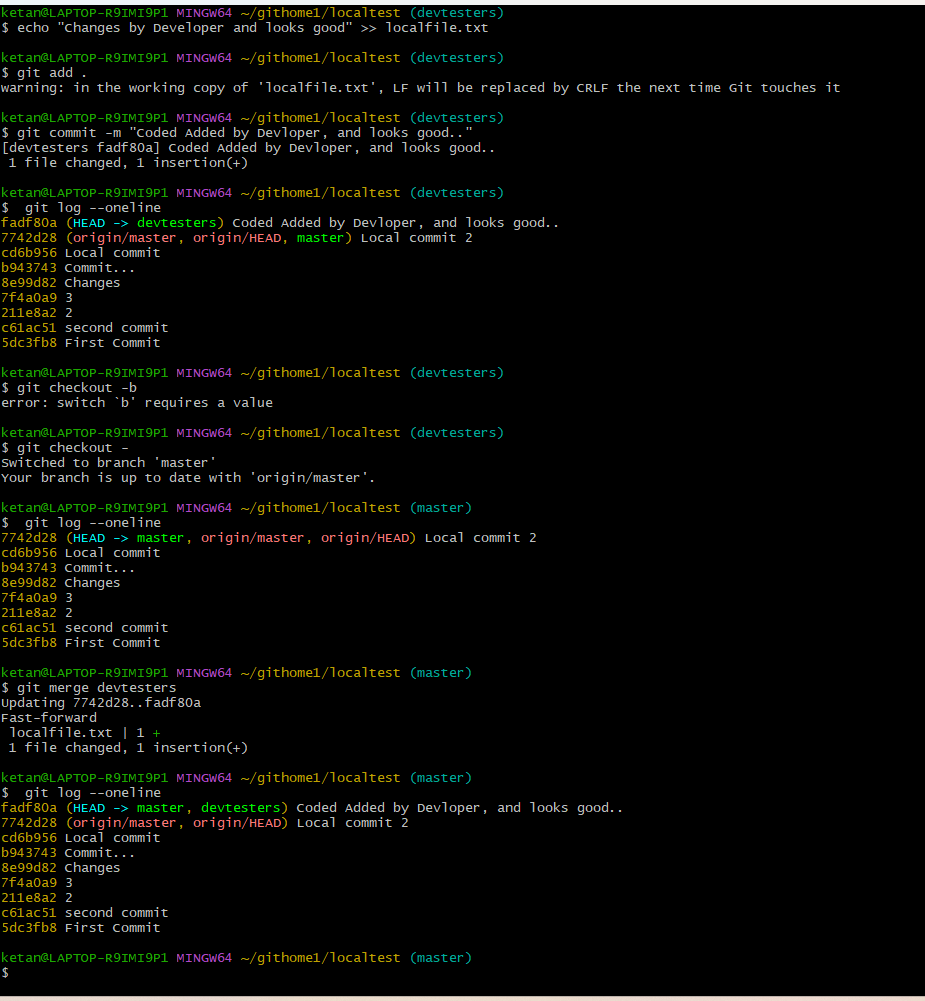
echo "Changes by Developer and looks good" >> localfile.txtAdd to staging and commit
git add . git commit -m "Coded Added by Developer, and looks good.."You will see noe head pointing to HEAD -> devtesters
git log --onelineLet's switch to the master/main or previous branch to check for the changes and commit history, which will not get replicated on the master now.
git checkout -To merge the devtesters with master/mainbranch
git merge devtestersNow both branche head are pointing to the latest commit HEAD -> master, devtesters
git log --onelineNote: devtesters is the branch name
Rebase
Rebasing is the process of moving or combining a sequence of commits to a new base commit. Rebasing is most useful and easily visualized in the context of a feature branching workflow. The primary reason for rebasing is to maintain a linear project history.
Command:
git rebase <Base branch name>
Note:
- In Git Merge, the commit history of your branch to be merged may or may not be in Sync with the base branch.
- In Git Rebase, the base branch and the target branch always Sync the commit and then merge.
Cherry pick
Cherry picking is the act of picking a commit from a branch and applying it to another. git cherry-pick can be useful for undoing changes.
For example, say a commit is accidentally made to the wrong branch. You can switch to the correct branch and cherry-pick the commit to where it should belong.
Command:
git cherry-pick <Comit-ID>
Note: You may see the conflicts which need to be resolved manually.